
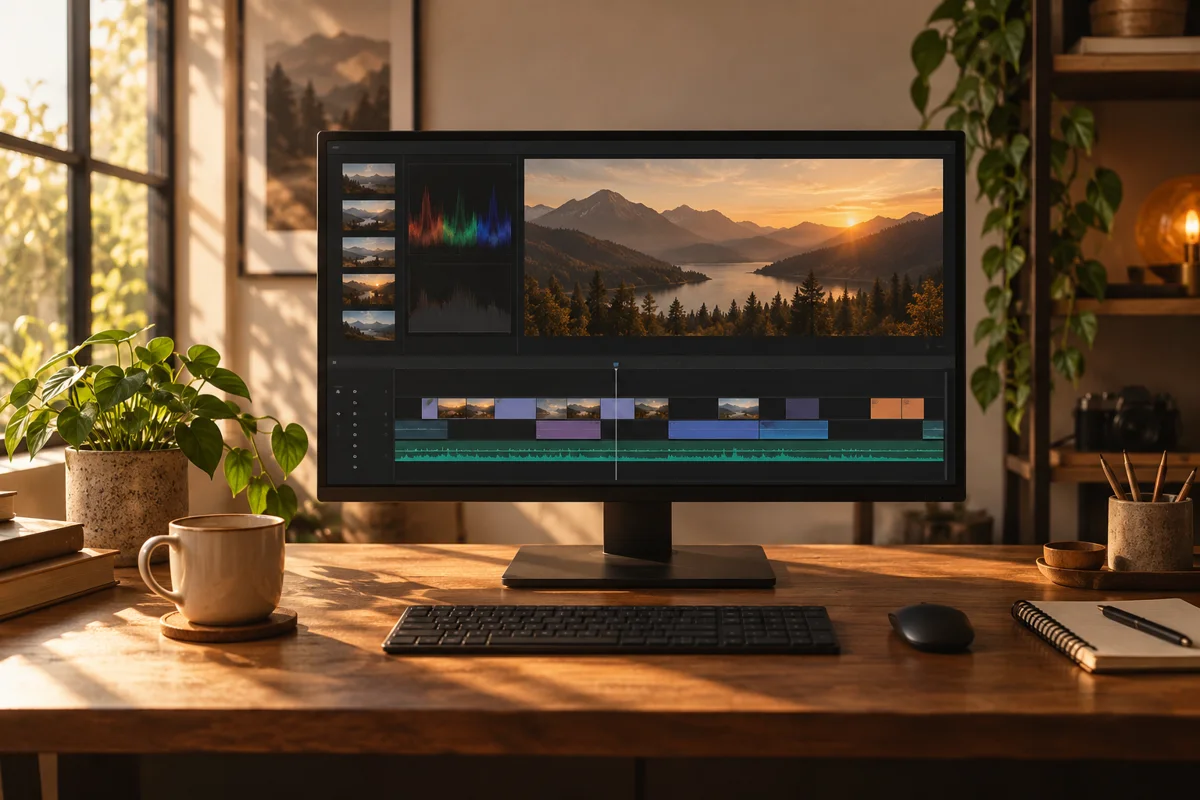
The best free video editing software should let you finish a video without a surprise bill at the export screen. It should also fit the work you want to do. A ten-minute family film and a layered music video do not need the same editing tools.
These five free video editors cover different needs. Some have paid upgrades. Others are completely free, with no separate paid version. Each can do useful work without a subscription, but that does not make each one the right fit for your computer or your patience.
The best free video editors at a glance
| Free video editor | Best reason to choose it |
|---|---|
| DaVinci Resolve | Deep editing, color, effects, and sound tools in one app. |
| Shotcut | A cross-platform video editor with broad format support. |
| Kdenlive | An open-source timeline for layered projects, especially on Linux. |
| iMovie | A clear starting point for Mac users making simple films. |
| Clipchamp | Quick clips in a web app, with free 1080p exports. |
Do one small export before you move a whole project into any video editing software. Use your own camera files. Add a title, make a few cuts, and save the result. That short test will reveal more than a long list of advanced features.
1. DaVinci Resolve: best free video editor for growth
DaVinci Resolve is my first pick if you want to learn video editing as a lasting skill. Its free version brings editing, color correction, sound work, and visual effects into the same project. You can start with cuts and titles, then learn the advanced tools when you need them.
The key features are the Edit and Cut pages, the Color page, Fairlight audio tools, and Fusion effects. You do not need to learn all of them at once. For a first video, import clips, put them in order, trim the ends, set the sound level, and export.
The free version supports exports up to Ultra HD at 60 frames per second. That is enough for many YouTube videos and personal projects. The paid Studio edition adds features and broader format support. Check the exact camera format you use, since support can vary by operating system and edition.
The tradeoff is a steeper learning curve. The user interface gives you a great deal to look at, and demanding footage can put pressure on your computer. Do not judge the software from a slow, effects-heavy first project. Start small and learn proxy media, which uses lighter copies while you edit.
Choose it for: projects that may grow into detailed color work, multi-camera editing, or careful sound mixes. Skip it for: a one-off clip when you do not want to learn a full editor.
If speed matters more than depth, our CapCut vs DaVinci Resolve comparison explains that choice. Mac users weighing a paid upgrade can also read DaVinci Resolve vs Final Cut Pro.
2. Shotcut: best for a flexible, free desktop workflow
Shotcut is free, open-source video editing software for Windows, macOS, and Linux. There is no premium edition waiting to sell you the rest of the app. That makes it a good fit if you want to learn one tool and keep your editing costs at zero.
Its wide format support is a key strength. You can work with many kinds of video and audio files, use a timeline with several tracks, and add filters. Proxy editing can make large files easier to handle. There are color controls, keyframes, subtitles, and chroma key tools, too.
Chroma key removes a chosen color, such as the green behind a speaker. It works best with even light and some space between the person and the backdrop. No free editor can make a poorly lit green screen effortless.
Shotcut's panels can feel less guided than a simple web app. Expect a learning curve as you work out where filters, track controls, and export settings live. Keep the first project plain. A clean cut is worth more than an effect you cannot adjust.
Choose it for: a cross-platform editing workflow with no paid feature tier. Skip it for: a template-led experience where the app makes most design choices for you.
The best free video editing software is not always the one with the most buttons. Shotcut makes sense when you value control over a ready-made look.
3. Kdenlive: best for open-source projects with layers
Kdenlive is another completely free video editor. It suits people who want to build a video from several layers of clips, titles, and sound. Linux users have a particularly strong reason to try it, though it also offers Windows and macOS versions.
Its key features include multiple audio and video tracks, proxy editing, titles, effects, and subtitles. The Kdenlive manual explains its main tools and links to lessons. Keep it open while you learn a new step.
Think of tracks as layers. A main shot can sit below a close-up, while speech and background sound sit on separate audio tracks. That gives you room to change one part without rebuilding everything around it.
This freedom brings a learning curve. You need to know which track you are changing and where the playhead is. Name tracks early. Save a new project version before a large change. Those habits help in any video editor, but they matter more as a timeline grows.
A Kdenlive user discussion includes praise from hobbyists alongside a report of slow rendering on one setup. That is one person's experience, not a speed test. Try a short export on your own machine before you commit to a long project.
Choose it for: layered edits and a free, open-source workflow. Skip it for: a fast template that needs very little setup.
4. iMovie: best starting point for Mac users
iMovie is a free app for Mac users who want to turn clips into a clear, watchable film. It offers titles, transitions, basic color controls, picture-in-picture, green screen effects, and exports up to 4K on supported hardware.
Its main appeal is the smaller set of decisions. You can trim a clip, add music you have permission to use, and put a title at the start without learning a full effects workspace. For a family trip, a short lesson, or a simple YouTube channel, that may be all you need.
An intuitive interface is personal. If you are used to a timeline with many stacked tracks, iMovie may feel restrictive. If you have never made a video, those limits may help you finish one.
The free version is the app; there is no iMovie paid version with hidden tools. Still, check the current macOS requirement before downloading. A free app that needs a system update is not a quick fix for every older Mac.
Choose it for: simple edits on a compatible Mac. Skip it for: deep control over complex layers, precise color work, or a team that needs another editor's project files.
5. Clipchamp: best for quick clips in a browser
Clipchamp fits casual users who want to make a short video without starting in a dense desktop workspace. Its drag-and-drop interface gives you a straightforward way to arrange clips, add text, and use free stock content.
The free plan supports watermark-free exports up to 1080p. Microsoft explains the free and paid features in its Clipchamp plan guide. Premium assets and higher-resolution exports can require paid access. Check which items you use before you finish the edit.
That makes Clipchamp useful for social media clips, short lessons, and basic edits. It is less appealing if you need deep color correction tools or a large project with a great many layers. A web app also brings browser, device, and internet connection needs into your editing workflow.
Start with the free plan. Export a short sample with the exact text style and stock items you want. If it meets your needs, there is no reason to pay just because more advanced features exist.
Choose it for: fast, simple edits and full HD exports. Skip it for: work that needs a full desktop editor's control or a dependable offline routine.
How to choose the best free video editing software for your work
Begin with your next video, not a list of features you might use someday. Write down its length, shape, and deadline. Then ask what you need to change. Cuts and titles are a different job from motion tracking, detailed sound repair, or complex color correction.
For simple edits, try iMovie or Clipchamp first. For a more flexible desktop editing workflow, try Shotcut or Kdenlive. For the most room to learn advanced tools, begin with DaVinci Resolve.
Free video editing apps can still cost time. A steeper learning curve may be worth it if you plan to edit videos every week. It is harder to justify when you only need one birthday montage tonight.
Do not install five free video editors and keep moving the same unfinished project between them. Pick two, make the same thirty-second sequence in each, and choose the one you can finish with.
Check export limits before the big edit
A free plan may limit resolution, premium assets, or AI tools. A free trial may stop working after a set time. Those are different offers. Look for the limits that affect the file you will deliver.
Export videos early in the process. Check the picture, sound, captions, and file size. Play the result on the device your audience will use. A video that looks fine in the editor can still have small text or poor sound on a phone.
Keep the original files safe
Your project file usually stores editing choices, not every piece of footage. Keep the media library with the project and make a separate backup. Do not delete source clips because the timeline still shows a thumbnail.
Use clear folder names for video, sound, and exports. Keep a clean copy before you try new effects. A little order saves time when you return to the project a month later.
Learn cuts before advanced features
Start with a strong first shot. Remove dead time. Keep speech clear. Use transitions only where they help the viewer follow the story. These choices matter more than a long list of smart features.
AI features can help with tasks, but they cannot decide what your audience needs to see. Check generated captions and suggested edits. If an automated cut changes what a person meant, put the missing words back.
Questions about free video editing software
What is the best free video editing software for beginners?
Try iMovie on a compatible Mac or Clipchamp for short clips in a browser. Choose Resolve if you are willing to accept a steeper learning curve for more control later. The best free video editor is the one that helps you finish the work you actually have.
Can free video editors make videos without a watermark?
Yes. These picks can produce clean exports within their free features and supported settings. Check paid assets and export limits before you commit. A short sample export is the safest way to catch a surprise.
Do I need a powerful computer to edit videos?
It depends on the files and effects. Long, high-resolution footage needs more resources than a few short clips. Proxy media and a lower playback quality can help. Test your real files before buying hardware.
When should I pay for video editing software?
Pay when a specific limit blocks work you need to do. That might be a format, an effect, or a time-saving tool. Finish a few projects with free video editing software first. You will then know which upgrade solves a real problem.